

Venari
Getting started with Venari — installation, initial setup, and first scan configuration for dynamic application security testing of web applications and APIs.
Venari Help Topics
Venari Quick Start
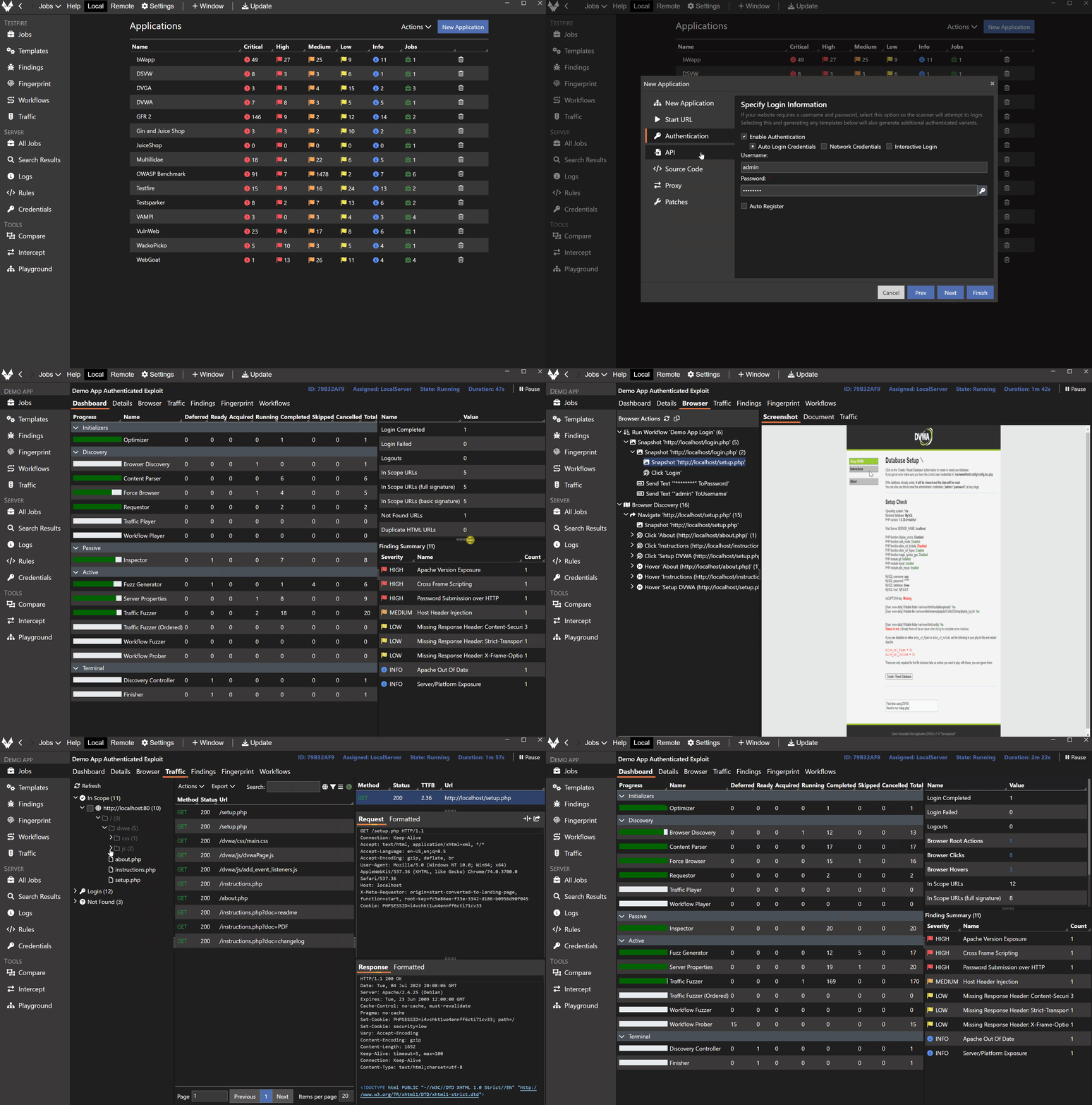
Venari uses data containers called APPLICATIONS to store configuration and scan data about specific web applications. This video shows the simplest setup of a new application and the steps to start an authenticated scan with auto-login enabled.
Click Venari Quick Start to watch the video.
The animation below shows the application wizard creating a new web app. Once the application is created a security scan is started.
Recording a Login Workflow
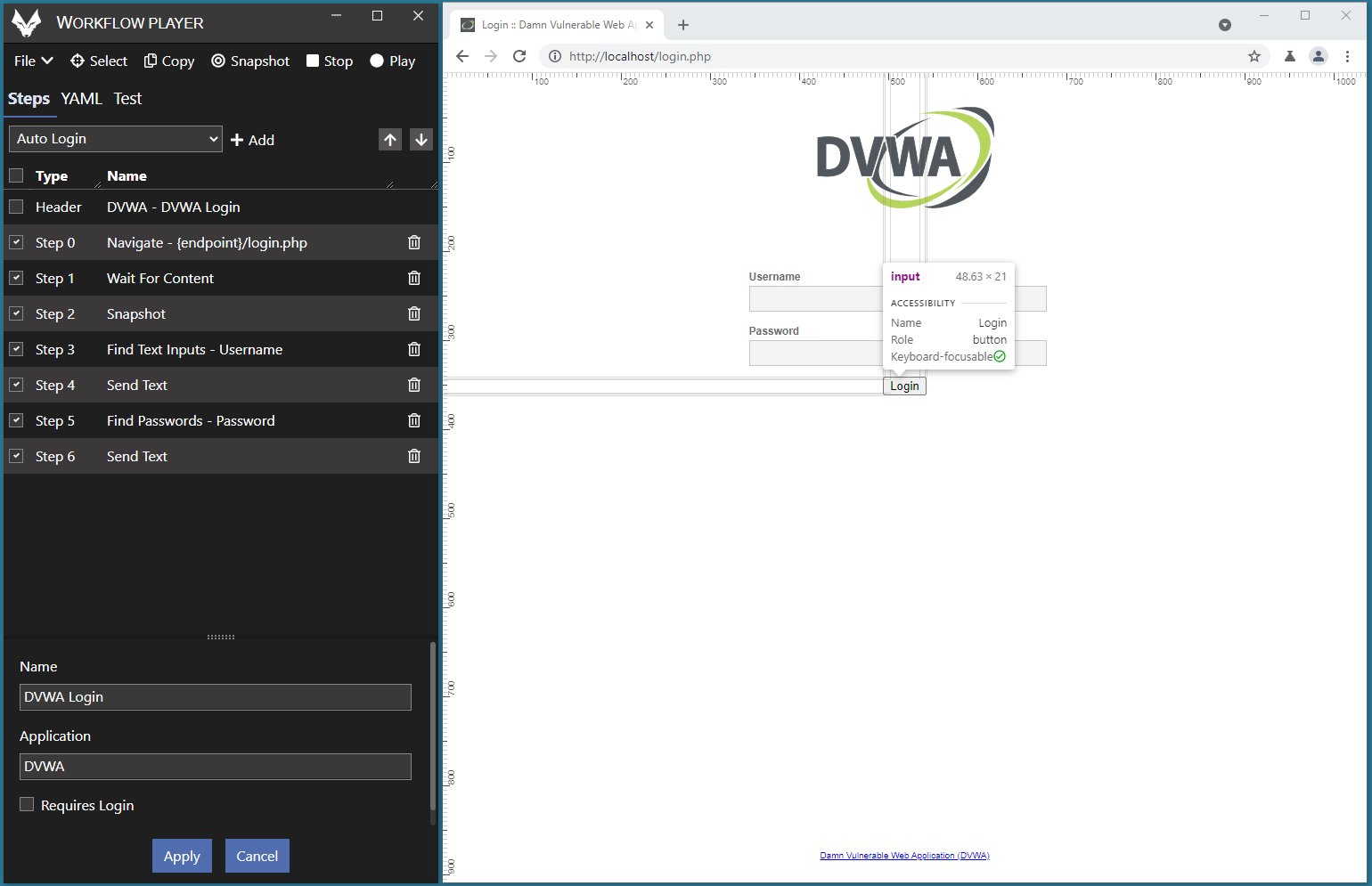
Venari uses workflows to specify sequences of HTTP requests and/or browser actions. For cases where auto-login does not work, it is very easy to create a login workflow and set up all future scans of an application to use that workflow. The video below shows you how.
Click Recording a Login Workflow to watch the video.
Working with Burp
Venari can export site maps and issues to Burp via the freely downloadable Auto-Mapper plugin.
Download the Auto-Mapper JAR file
Click Auto-Mapper Tutorial to watch the video.
Click Auto-Mapper Quick Start for the how-to article.
Click Import Venari Data into Burp to understand direct data export.